Running a Script
Click the Run button, or select that option from the Script menu, to run the script. The output will be displayed in the log window below the script. You may also run a portion of the script: select several commands and press the Run Selection button to run the selected commands.
Manual Run
A script can be run manually. All commands or steps will then be displayed as manual instructions. Click the Manual Run button in the toolbar or select the Manual Run option from the Script menu.
Running a Suite of Scripts
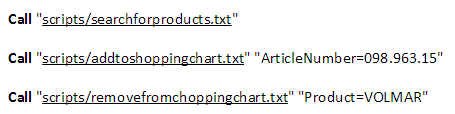
A script may call other scripts. You can create a script, or suite, that only calls other scripts. The suite would only contain a number of Call commands.
The Call command may contain parameters for the script to execute. You can also specify how many times to repeat the script before completion. For details, see the Call command in the List of Commands.
Set StopIfFailed to No to prevent a suite from stopping if any of the called tests fail.
A called script will inherit all parameters and settings (except StopIfFailed) from the calling script.
Test Suite Example:

Iterations
Blocks can be repeated. Use the Repeat command and specify how many times to repeat. You may also iterate through all rows in a data file, as shown in the example below:

The Iteration parameter will be set to the current iteration number, starting from 1.
Calling a Script with Parameters
Pass parameters to a script to make it more reusable. Keys and values are separated with an = sign, and parameters are separated by an &. Provide a list of parameters before or after the script, for example:
Call “scripts/script1.txt” “sensitivity=90” “wait=1000”
Call “scripts/script1.txt” “sensitivity=90&wait=1000”
Call “sensitivity=90&wait=1000” “scripts/script1.txt”
Parameters may also be stored in a data (CSV) file, as shown in the example below:
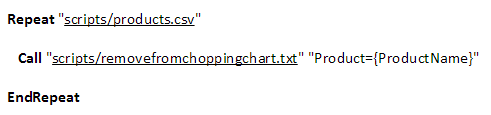
Parameters may also be retrieved from a database using a Select statement. Note that the following parameters must be set before the call:
|
Parameter |
Description |
Default value |
|
DatabaseDriverJar |
Path and name of the jar file that contains the JDBC driver. |
mysql-connector-java-5.1.23-bin.jar |
|
DatabaseDriverClass |
The Class name of the database driver. |
com.mysql.jdbc.Driver |
|
DatabaseConnection |
The database connection string. |
jdbc:mysql://localhost/sakila?user=root&password=password |
Example using database parameters:
Set DatabaseDriverJar "mysql-connector-java-5.1.23-bin.jar"
Set DatabaseDriverClass "com.mysql.jdbc.Driver"
Set DatabaseConnection "jdbc:mysql://localhost/sakila?user=root&password=password"
Call "select first_name, last_name from actor;" "scripts/hello.txt"
or using Repeat:
Repeat "select first_name, last_name from actor;"
   Write "{first_name} {last_name}"
EndRepeat
Running Scripts from a Batch File
You may execute one or multiple scripts using the EyeAutomate.jar file. Place the calls in a batch file to run EyeAutomate repeatedly and complete an entire test suite.
Examples:
java -jar EyeAutomate.jar scripts\script.txt
Run a script stored in a bundle
The bundle will be exacted to the root folder before the run.
java -jar EyeAutomate.jar scripts\bundle.eye
Run several scripts at a time
java -jar EyeAutomate.jar “scripts/script 1.txt” “scripts/script 2.txt”
Repeat one or many scripts several times
java -jar EyeAutomate.jar 10 scripts/script1.txt scripts/script2.txt
Run with a list of parameters
java -jar EyeAutomate.jar “sensitivity=90&wait=1000” scripts/script1.txt
Run with a data file
The script will be run for each row of data in the CSV file:
java -jar EyeAutomate.jar “scripts/parameters.csv” “scripts/script.txt”
Generating Reports from a Batch File
Create or update the Test Summary and Test Step Duration reports after a script run using the -r command-line option:
java -jar EyeAutomate.jar -r scripts\script.txt
Running Scripts from FitNesse
You can export scripts to FitNesse and run them there. FitNesse is an open-source acceptance testing tool available at: www.fitnesse.org
Steps:
-
Use Export as FitNesse from the File menu.
-
Copy
EyeAutomate.jarto the same folder asfitnesse.jar. -
Copy the
imagesfolder to the same location to allow image recognition. -
Paste the exported test into a FitNesse page.
FitNesse Test Example:
!path EyeAutomate.jar
!define TEST_SYSTEM {slim}
!|script|eyeautomate.EyeAutomateFixture|
|execute|StartWeb www.eyeautomate.com|
|execute|WaitMouseMove images/1305050944885.png|
|execute|MouseLeftClick|
|execute|WaitMouseMove images/1305050956684.png|
|execute|MouseLeftClick|
|execute|WaitMouseMove images/1305050967915.png|
|execute|MouseLeftClick|
|execute|WaitMouseMove images/1305050976639.png|
|execute|MouseLeftClick|
|execute|WaitMouseMove images/1305050992470.png|
|execute|MouseLeftClick|
|execute|WaitMouseMove images/1305051550296.png|
|execute|MouseLeftClick|
|execute|WaitVerify images/1305053760123.png|
Running Scripts from Microsoft Visual Studio
Run EyeAutomate scripts from Visual Studio. The following example shows how to call a script and validate output (requires EyeServer):
public void CallEyeAutomateTest()
{
  var response = RunEyeAutomateTest("MyTest.txt");
  Assert.IsTrue(response.StartsWith("Completed"));
}

public static string RunEyeAutomateTest(string script)
{
   var response = String.Empty;
   var request = String.Format(@"http://localhost:1234/scripts/{0}", script);
   var webClient = new WebClient();
   var stream = webClient.OpenRead(request);
   if(stream != null)
  {
   TextReader reader = new StreamReader(stream);
   response = reader.ReadToEnd();
  }
 return response;
}
Running Scripts from JUnit
EyeAutomate scripts can be run from within a JUnit test. This is convenient when running EyeAutomate scripts in a continuous integration server like Jenkins or CruiseControl. The example code below shows how to run a script from a JUnit test and using the ScriptLoggerTest class as the script logger. The “EyeAutomate.jar” file should be added to the Java Build Path.
import org.junit.Test;
import eyeautomate.ScriptRunner;
import eyeautomate.ScriptLoggerTest;
import eyeautomate.DerivativesCache;

public class ScriptRunnerTest
{
  @Test
  public void test()
  {
    ScriptRunner scriptRunner = new ScriptRunner(new ScriptLoggerTest());
    scriptRunner.setParameter("ImageFolder", "C:/EyeAutomate/images");
    scriptRunner.runScript("C:/EyeAutomate/scripts/myscript.txt");
  }
}
Creating Python Scripts
The Eye can be used in Python scripts by importing the “eye.py” library.
You need to start the EyeServer and have a valid license. Edit the “eye.py” file if you using anything else than localhost and port 1234.
Basic Example:
import eye
# Find all notepads
locations=eye.findImages('images/notepad.png')
if locations!='Image not found':
          for location in locations:
             print 'Found at: '+location[0]+', '+location[1]

             # Click and type 'Hello'
             eye.click(location[0], location[1])
             eye.type("Hello")
else:
          print 'Image not found'
Selenium WebDriver Example:
import eye
# Open Wikipedia
eye.openBrowser('chrome', 'http://www.wikipedia.org')

# Find the search field
location=eye.findImage('images/search.png')
if location!='Image not found':
        # Click in the search field and type 'tiger' followed by ENTER
        eye.click(location[0], location[1])
        eye.type("tiger[ENTER]")

        # Find the tiger image
        locations=eye.findImages('images/tiger.png')
        if locations!='Image not found':
             for location in locations:
                     print 'Found at: '+location[0]+', '+location[1]
        else:

            print 'Image not found'

# Close the browser
eye.closeBrowser()
Run Options
Run options can be found in the Settings/Run Options menu in EyeAutomate.
|
Animate Cursor |
Enable/disable animated mouse moves. |
|
Create Test Run Report |
Auto-generate report after run. |
|
Hide Studio During Run |
Hide EyeAutomate during execution. |
|
Launch Test Run Report |
Open report after run completes. |
|
Lock Screen |
Built-in screen lock to prevent unauthorized people from using the computer after a script has been completed or failed. Requires 4-digit numeric password. |
|
Manual Recovery |
Prompt user to complete failed steps manually. |
|
Run Dialog On Top |
Keep the Run dialog in front of other windows. |
|
Save Before Run |
Save scripts automatically before execution. |
Logs
Stored in the “logs” folder in text or CSV format.
-
Execution Log: All executed commands recorded in
execution_log.txt, including results ofVerifycommands. -
Test Log: Test-level events (start, completion, failure) logged in
test_log.txt. -
Run Statistics: Performance and history data saved in
test_history.csvandtest_steps.csv.