Reports
View Test Results
View your test results using a set of customizable reports. You can generate and view a report from the Reports menu in EyeAutomate. Reports are based on statistics stored in the test_history.csv and test_steps.csv files. EyeAutomate stores test statistics from all test runs in these CSV files.
Customizing Reports
All reports in EyeAutomate can be customized using the provided templates. Each type of report has its own template, which can be found in the report_templates folder. Template filenames end with _template.htm. You may customize elements such as font, language, date & time format, colors, and formatting.
Test Summary Report
The Test Summary Report lists all tests that have been run. Click the script filename link to get more information about each run.

Table columns:
|
Column |
Description |
|
Script |
The filename of the script. |
|
Runs |
The total number of times the script was run. |
|
Passed |
The number of times the script ran without problems. |
|
Failed |
The number of failed runs. |
|
Last Status |
The status (Passed or Failed) of the latest run. |
Test Step Duration Report
The Test Step Duration Report shows statistics for the execution time of all steps. Note that commands not part of any step will not appear in the report. This report is useful for evaluating the performance of the application under test.
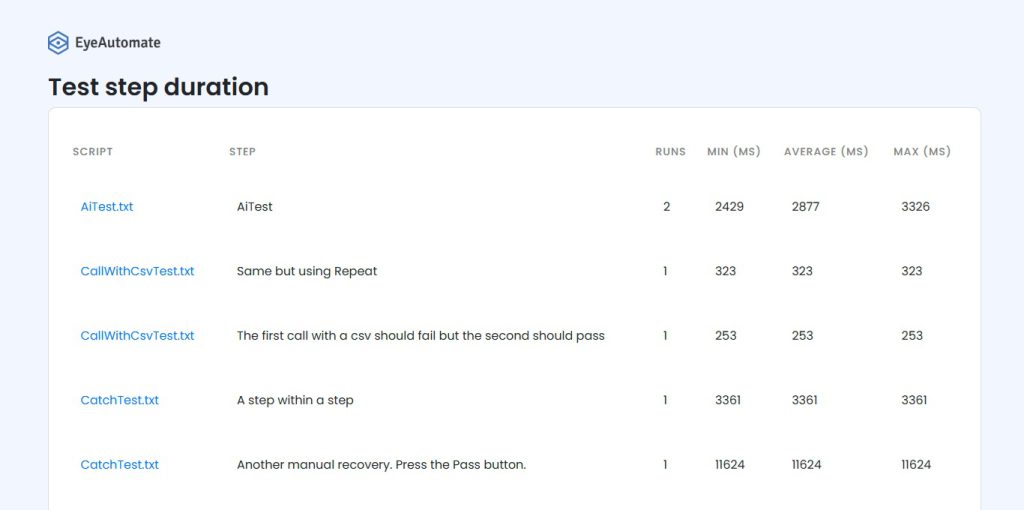
Table columns:
|
Column |
Description |
|
Script |
The filename of the script. |
|
Step |
The step description. |
|
Runs |
The total number of times the step was executed. |
|
Min (ms) |
The shortest execution time in milliseconds. |
|
Average (ms) |
The average execution time in milliseconds. |
|
Max (ms) |
The longest execution time in milliseconds. |
Test History Report
The Test History Report lists all runs for a given script. Click on the date or time link to view detailed information about each execution.

Table columns:
|
Column |
Description |
|
Date |
The date the script was run. |
|
Time |
The time the script was run. |
|
Passed |
The number of commands that executed successfully. |
|
Failed |
The number of failed commands. |
Test Run Report
The Test Run Report lists all commands executed during a test run. Failed commands include a link to a screenshot showing the screen at the time of the error. Screenshots are also included for captured images.
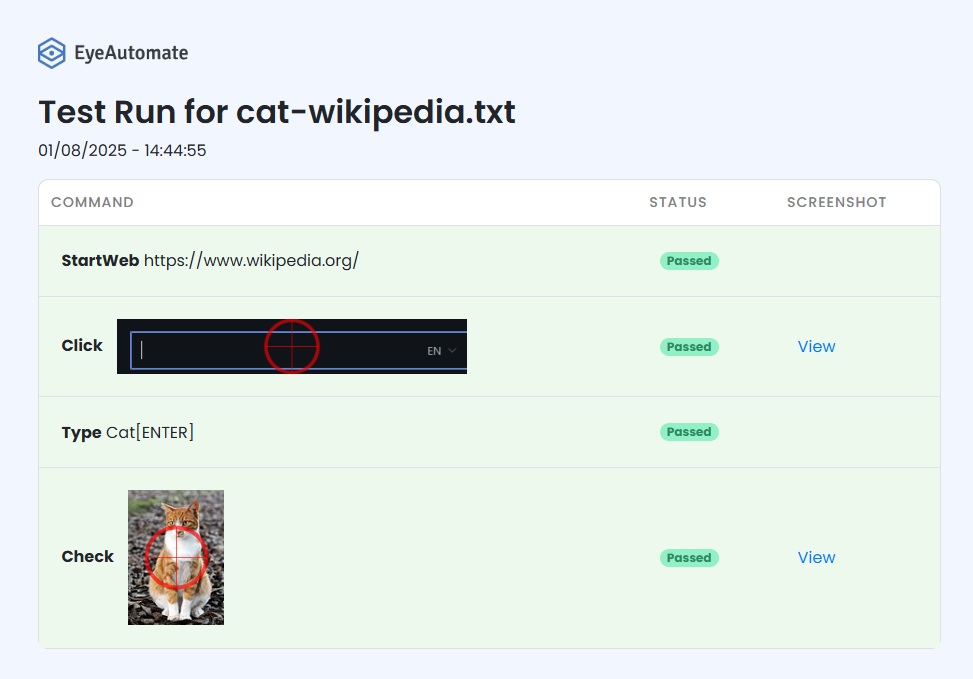
Table columns:
|
Column |
Description |
|
Command |
The script command. |
|
Run Status |
Passed or Failed. A screenshot is included for Failed and Capture commands. |
Test Steps Report
The Test Steps Report lists all commands in a script.

Manual Test Report
The Manual Test Report lists commands in a script as manual test instructions.
Command names are translated into native text using the manualtest.properties file, which can be translated into your preferred language.
Note: Only commands listed in the
manualtest.propertiesfile will appear in the report.
