Scripts
Use EyeAutomate or a standard text editor to edit scripts. Specify one command per line. A command may take one or more parameters separated by spaces. Place quotes around parameters that contain spaces:
Type “This is a test”
Select a command in EyeAutomate and press the F1 key for context-sensitive help.
Visual Script
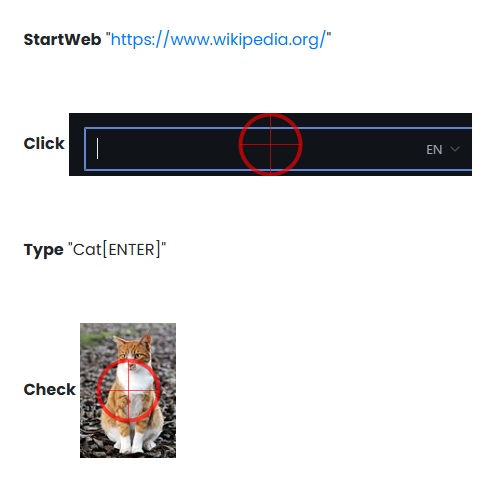
A script in EyeAutomate is visually readable and consists of commands, images, data, and widgets. A visual script may consist of four types of files:
-
Scripts (.txt extension)
-
Images (.png extension)
-
Data (.csv extension)
-
Widgets (.wid extension)
Example of a visual script:
Bundles
A bundle is a ZIP file with a “.eye” extension that contains everything needed for a visual script to run: scripts, images, data, widgets, and commands.
A bundle includes all necessary components, making it easy to transfer scripts between installations.
A common use case is developing the bundle on one machine and running it periodically or on demand on another.
You can rename the bundle to “.zip” and extract it using any standard unzip tool.
Images
Images are used by many commands to identify screen elements, rather than relying on coordinates. Images are captured using the Recorder or the Insert > Image button in EyeAutomate.
Images still work even if only portions match what’s on screen. The Vizion Engine focuses on similarities between the recorded and live appearance.
By default, the target location (marked by a circle) is centered within the image. This location is more important than image boundaries.

You can adjust the target location using the Properties dialog. Click an image to open this dialog.
If you’re getting inaccurate results, use a target area instead. In the Properties dialog, place a selection rectangle around the key part of the image. The target area is matched in detail (95% by default), while the rest of the image is verified less strictly (30% by default).
A
Clickcommand will click the center of the target area.

Use larger images to improve match accuracy. Always define a target location or area.
Target areas are especially important when using the
Searchcommand, as they reduce the chance of false matches. Increase theConfirmationLevelto further reduce false positives.
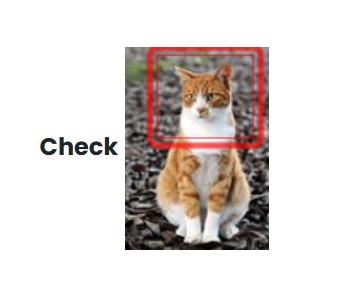
Image Paths
Image paths can be relative or absolute:
-
Relative paths (default) are relative to the EyeAutomate installation folder:
"images/1339591239425.png".
Absolute paths are platform-dependent:
"C:\EyeAutomate\images\51339591239425.png".
Default folders:
-
scripts → for script files
-
images → for image files
-
data → for CSV files
-
widgets → for widget files
Use the built-in parameters ImageFolder or ScriptFolder to simplify referencing and switching folders.
For example:
To set a different root location:
-
Use Settings > Set Image Folder
-
Or modify
parameter.properties:
Be sure to escape colons with a backslash (
\:) in Java properties files.
Folder structure after moving files to a custom root folder (e.g., EyeAutomateData):
Widgets
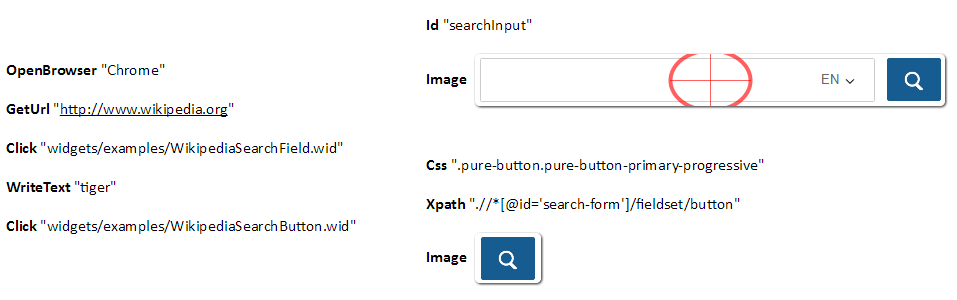
Widgets help maintain targets in the UI. A widget is a small script containing a prioritized list of Properties—these can be images, coordinates, or identifiers used to locate a target.
Widget scripts run one command at a time until a target is found. Execution continues even if individual commands fail.
Example of a script using two widgets:
Locating an Image
The Eye finds the best visible match. If there are multiple identical matches, they are returned in order of distance from the current location, which starts at the upper-left corner of the screen.
Texts
Many EyeAutomate commands accept a text string instead of an image. The current font setting determines how the text is rendered. Use the Font command to configure this.
Steps
Visual scripts can be divided into Steps for two main purposes:
-
Improve readability.
- To turn an automatic script into a semi-automatic script.
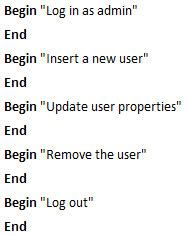
A step begins with a Begin command and ends with an End command. Steps can be nested, and descriptions may include both text and images.
You can:
-
Add steps before or after writing the script.
-
Insert empty steps to serve as manual test instructions.
To create a step:
-
Select commands
-
Click Insert > Step
-
Add a step description and press OK
Parameters
Parameters increase script flexibility and reusability. They are case-sensitive and enclosed in curly braces {}, e.g., {delay}.
-
EyeAutomate will prompt for undefined parameters before running a script.
-
Use the
Callcommand to pass parameters between scripts. -
Use the
Setcommand to define or override parameters.
Parameters defined or modified in a called script are not visible to the calling script.
Built-in Parameters
|
Parameter |
Description |
|
CurrentX |
Last X-coordinate set by |
|
CurrentY |
Last Y-coordinate set by |
|
ImageFolder |
|
|
ManualTestResult |
Result entered from a Manual Test Dialog. |
|
ScriptFolder |
Path to the current script’s folder (absolute or relative). |
Parameter Properties File
The parameter.properties file contains global parameters such as ImageFolder, RootFolder, and any user-defined values shared across scripts.
Example:
RootFolder=C\:/EyeAutomateData
MyFolder=Test
ImageFolder=images
-
Use forward slashes (
/) instead of backslashes (\) -
Escape colons (
:) with backslashes (\:) in Java property files.
Modify this file manually or use Settings > Set Parameter in EyeAutomate.
Data Files
Use a CSV file to pass parameters into a script—enabling data-driven testing.
-
The first row must contain parameter names (case-sensitive).
-
Use one row per test case.
-
EyeAutomate auto-detects common delimiters (comma, tab, pipe, colon, semicolon).
Run the script using a CSV file via the Run with Data File option in the Script menu.
Data File Example:
LoginId Password MenuItem
Tom     Secret   File
Erica   Secret   Edit